
Export transcripts and organize audio projects in VoiceGo
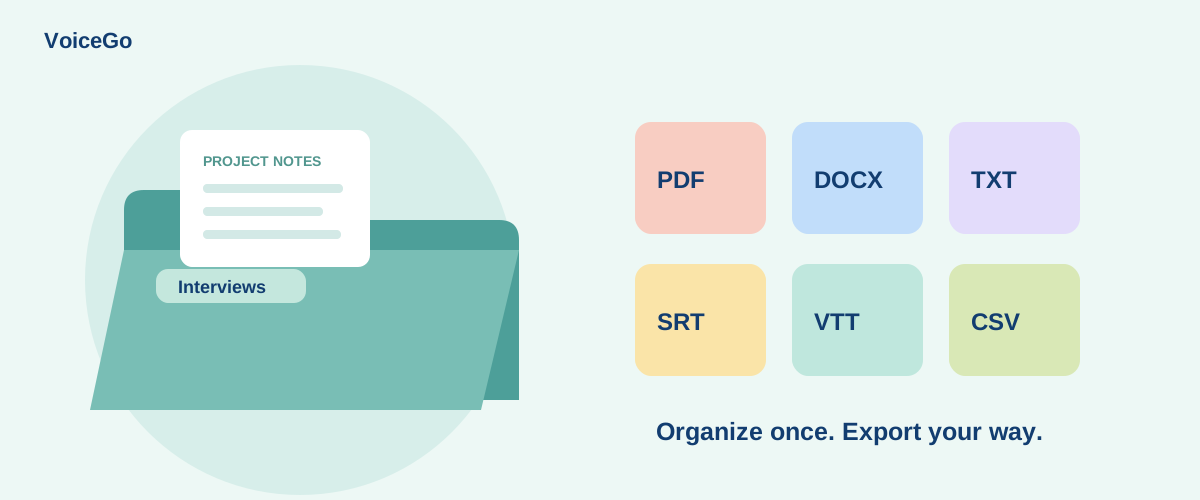
Choose PDF, DOCX, TXT, CSV, SRT, or VTT exports, organize transcripts in folders, and manage multiple recordings with VoiceGo.
VoiceGo team · · 2 min read
Transcribing is only one part of a recording project. The next challenge is finding the right file and delivering it in a format someone else can use. VoiceGo combines folders, transcript search, downloads, and bulk actions to reduce repetitive work.
Choose an export for its destination
- TXT: lightweight text for notes, search, or manual use in another tool.
- DOCX: an editable document for reviewers and word processors.
- PDF: a readable document for distribution.
- SRT and VTT: timed subtitles for compatible video tools and players.
- CSV: structured transcript data for spreadsheet workflows.
Open a transcript for quick downloads or use Advanced Export for additional formats and timestamp options. Review the result in its destination application: captions need a timing check, while an interview document may need spelling corrections and speaker context.
Make recordings easier to find
Use names that describe the project, recording date, and subject. For example, “Website research — 08 Nov — navigation interview” is more useful than an unchanged microphone filename. Create folders around projects or courses and move relevant transcripts into them.
Search Transcripts looks through filenames and transcript text in your workspace. A distinctive phrase can help locate a discussion even when you cannot remember the recording's title.
Work with several files together
Select files in the dashboard to reveal bulk actions. Move a selection into a folder or delete files you no longer need. For a bulk export, choose the formats you need and download the resulting ZIP. Free-account exports include a VoiceGo attribution message; Unlimited removes it. Keep batches manageable and verify the downloaded files before removing originals.
Bulk deletion is consequential. Check the selection and retain any exports you still need. An exported copy is separate from the workspace; removing a transcript does not erase copies already shared with other people.
Choose between a download and a share link
A download is useful when the recipient needs a local document. A share link lets them view shared content online; revoke it when access is no longer needed. Treat the link as access to the material, and do not post it publicly unless that is your intention.
For team licensing, see VoiceGo for teams. For questions about a failed export, email [email protected] with the format, approximate file length, and error message.