Interviews
A VoiceGo workflowKeep quotes connected to the recording. Use timestamps to check the exact wording before publishing.
Turn audio and video into text. No signup required.
By using VoiceGo, you agree to our terms and privacy policy.
Drag in an audio or video file, browse your device, record audio, or import a supported public link.
Set the spoken language and select an available mode for your recording. Enable speaker labels or translation when useful.
Start transcription, review the result, and download text, a document, or subtitles.
3 free transcripts daily. No credit card required.
Try VoiceGo with up to three files a day, up to 30 minutes per file. No credit card required.
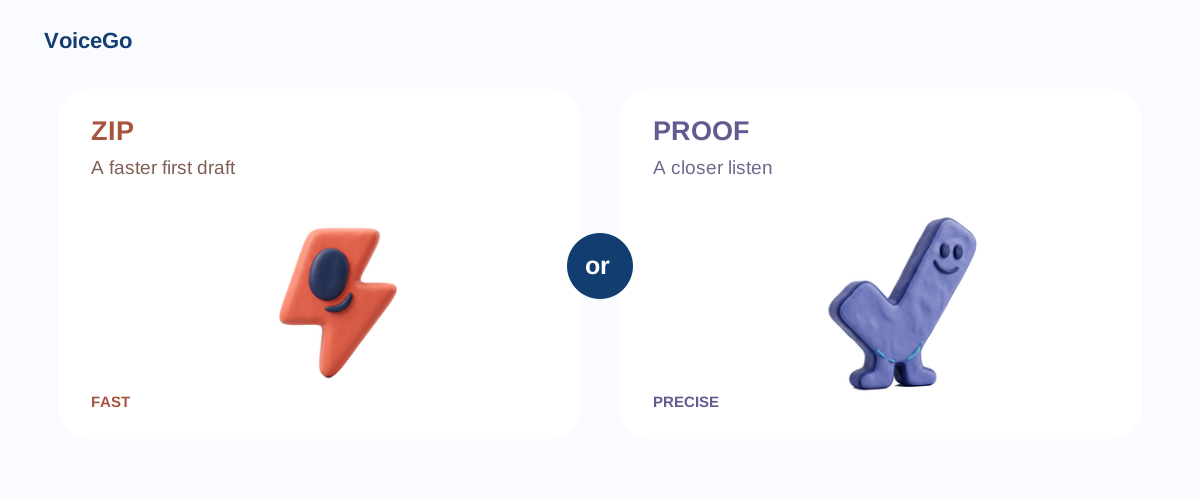
Choose Zip for speed or Proof for more detailed processing. Processing time depends on the recording and current demand.
Unlimited supports files up to 10 hours or 5 GB, with up to 50 files in a batch. Free accounts upload one file at a time.
Upload MP3, MP4, M4A, MOV, WAV, AAC, OGG, OPUS, and other supported formats. You can also record audio or import a supported public link.
Review the text alongside your recording, then export TXT, DOCX, PDF, CSV, SRT, or VTT for your next task.
VoiceGo uses Whisper models to turn spoken audio into text. Review names, numbers, and important details before sharing the result.
Choose your recording’s language or use automatic language detection. Accuracy varies with language, recording quality, and the selected mode.
Transcribe in the original language, then translate the transcript into English while preserving segment timing, or use the separate transcript translation tool.
Optional speaker labeling distinguishes voices in recordings up to 60 minutes. Review labels before exporting; overlapping voices may be difficult to distinguish.
Your workspace uses account access controls. Audio is processed by hosted transcription providers. Choose when to create a share link and read our privacy guide before uploading sensitive material.
100% Free
Three submissions per UTC day to try your workflow.
Process the first 30 minutes of each file, one upload at a time.
Free jobs join the standard processing queue.
$120 billed yearly Save 50%
No daily submission count limit for your individual account.
Up to 10 hours and 5 GB per file, with batches of up to 50.
Review, translate, and export your work without the free-account attribution.
Paid jobs take priority over the free processing queue.
Six practical ways to move from a recording to useful work.
Keep quotes connected to the recording. Use timestamps to check the exact wording before publishing.
Review decisions and responsibilities, then export notes for your project tools.
Search for a concept and return to the explanation instead of replaying an entire class.
Prepare text or subtitles from your own footage and review the result in your editor.
Group recordings by project and keep filenames consistent for easier retrieval.
Use individual accounts with assigned licenses and share transcripts deliberately.
Choose a short sample and try the workflow that fits your recording.
Upload your recording in the form above, choose a language and transcription mode, then select Transcribe. Review and download the result when processing finishes.
Yes. Start a guest transcription without an account. Your guest workspace lasts 24 hours; sign up or log in before it expires to keep your transcripts.
Three transcripts daily, up to 30 minutes per file, with one upload at a time. No credit card is required.
Unlimited costs $20 billed monthly, or $120 billed yearly—equivalent to $10 per month. See the pricing section for plan details.
Common audio and video formats include MP3, MP4, M4A, MOV, WAV, AAC, OGG, and OPUS. Unlimited supports files up to 10 hours or 5 GB.
Processing time depends on recording length, selected mode, and demand. Zip prioritizes speed; Proof uses a larger model for more detailed processing.
Accuracy depends on the language, model, background noise, and clarity of speech. Clear recordings work best. Always review important names, figures, and specialist terminology.
Yes. Export TXT, DOCX, PDF, CSV, or subtitle files in SRT and VTT format from your transcript.
Create an account with Google or verify your email using a six-digit sign-in code. Complete this in the same browser before the 24-hour guest workspace expires.
Manage your subscription from Account Settings. Cancellation stops the next renewal, and paid access continues through the current billing period.
Use Transcribe to English for supported speech-to-English transcription. The transcript translation tool can also open your text in Google Translate.
Visit Support for help with uploads, transcription, your account, or billing. The getting-started and privacy articles below explain the main workflow.
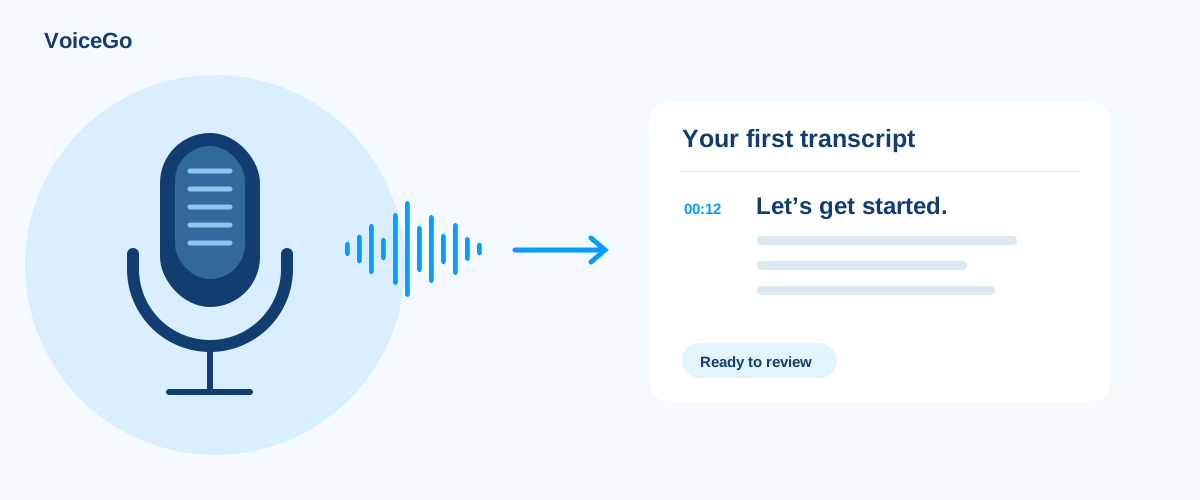
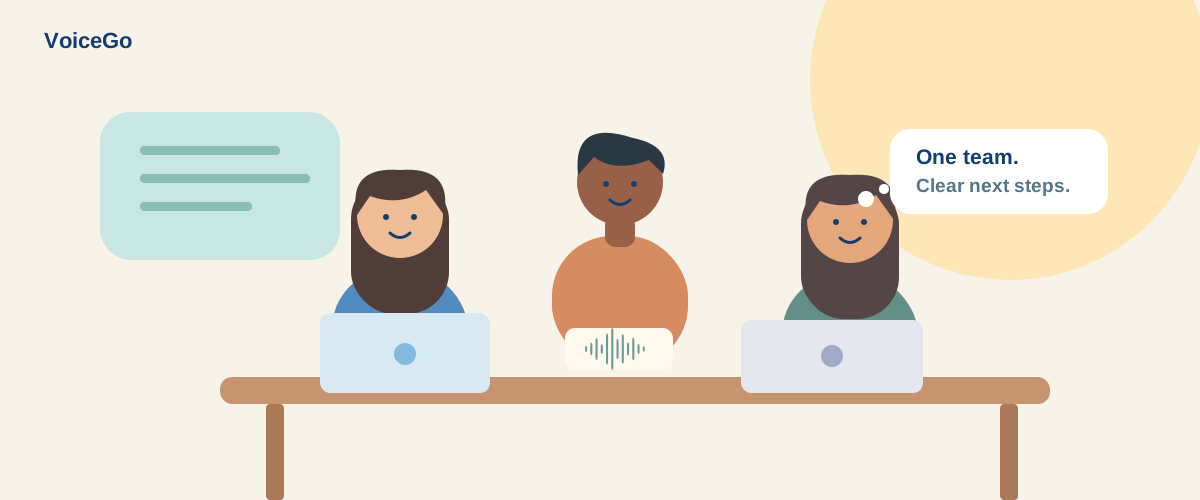
Start with your first transcript, find the right mode, or build a better team workflow.
Get access to the tools for your next recording.
Available with an Unlimited plan.
Select a language or detect it automatically.
Up to 10 hours / 5 GB per file on Unlimited.
Choose speed or more detailed processing.
Export text, Word, PDF, CSV, SRT, or VTT.
Review your recordings and speaker labels.
3 free transcripts daily. No credit card required.